Manage Profiles and Accounts
IOTA Wallet allows you to use multiple profiles and accounts, offering flexibility in managing various assets or purposes for transactions.
A profile is a collection of accounts.
Add Another Account Address
You can create and use multiple accounts within the IOTA Wallet in two ways.
Add a Profile
-
Go to
Accountsby clicking on the address at the top of theHomesection.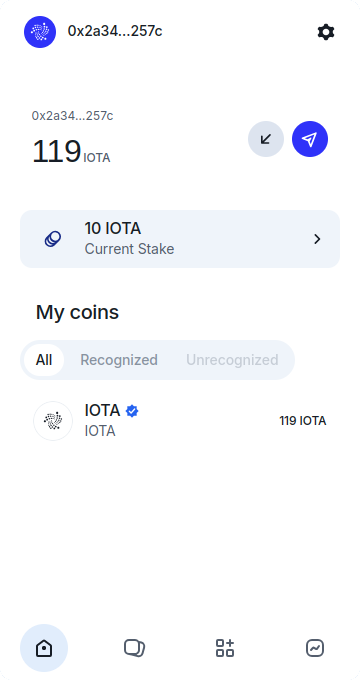
-
Click
Add Profile.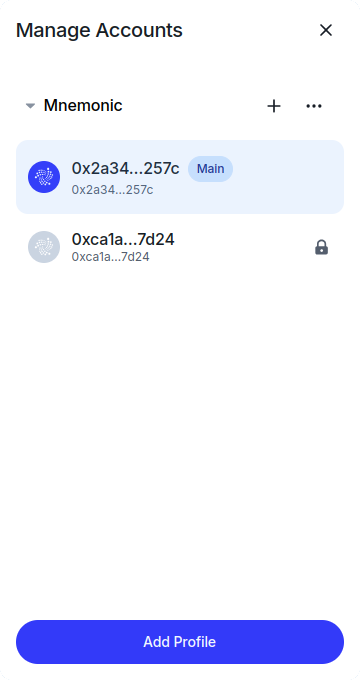
-
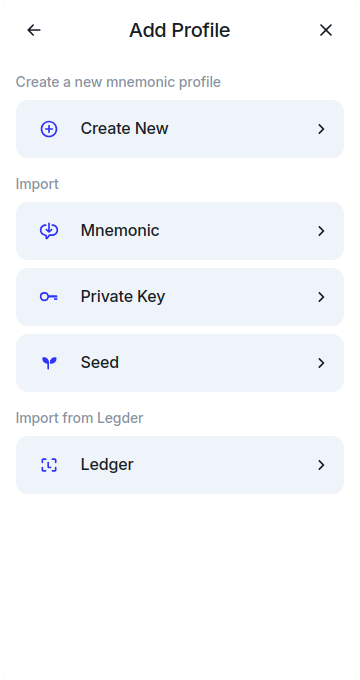
Choose to either create a new account or import an existing account.
Add Another Mnemonic Account
-
Navigate to
Accountsat the top of theHometab and selectManage. -
Click the
+icon next to the account type you want to add.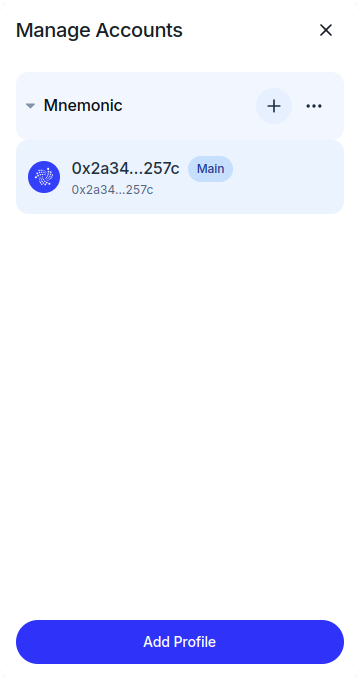
-
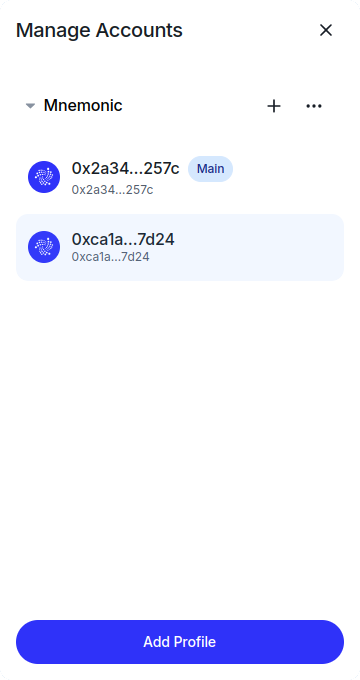
Your new account will appear. To use it, select it from the drop-down list on the Coins tab, or choose the address when connecting your wallet to a site or app.
Export a Private Key for an Account
Exporting a private key allows you to use the account with other wallet providers. Handle private keys with extreme caution to prevent unauthorized access to your assets.
When viewing the private key, ensure no one can see your screen. Click the crossed-out eye icon in the bottom-right corner to reveal the key.
-
Go to
Accountsat the top of theHometab. -
Select the account you want to export, click on the
...icon, and chooseExport Account Keysfrom the dropdown.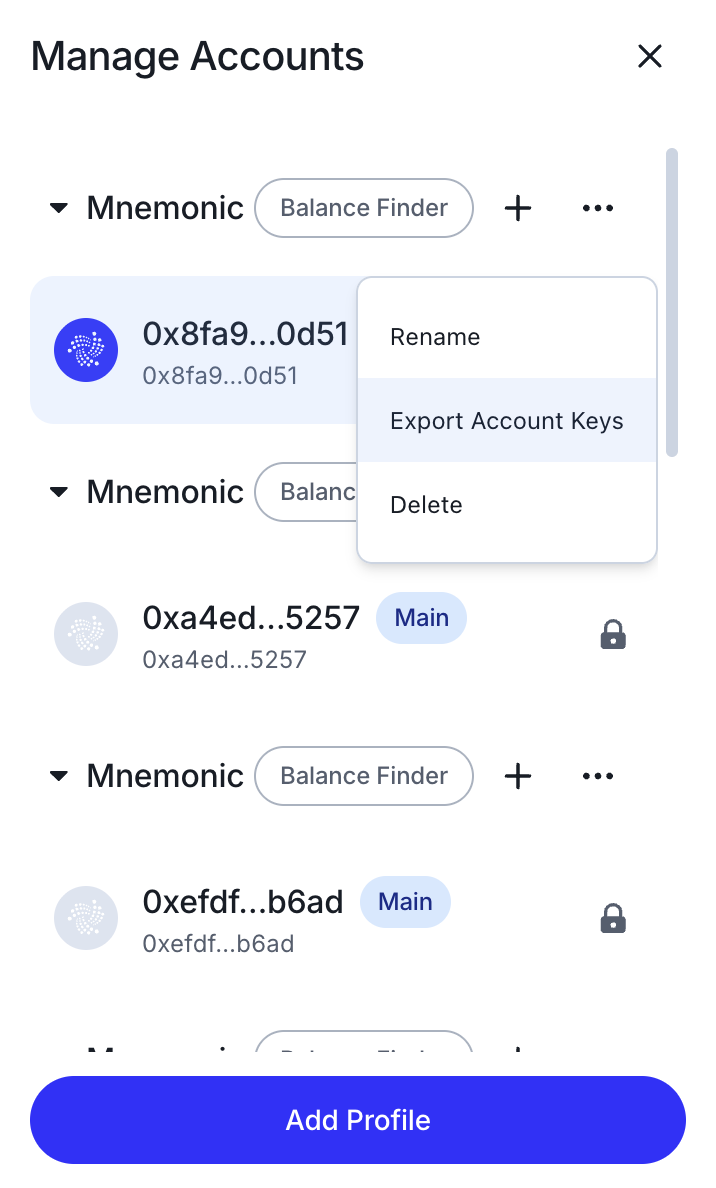
-
Enter your wallet password and click
Verify.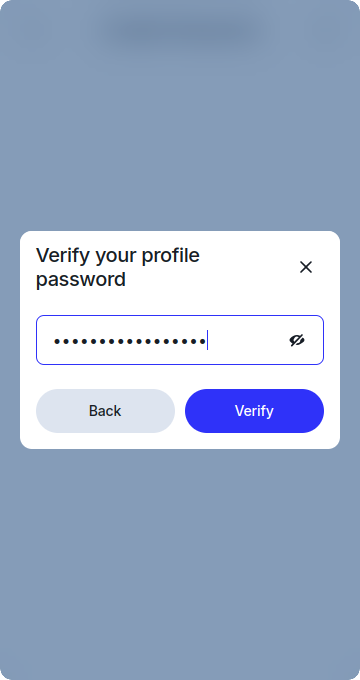
-
Click
Copyto copy the private key to your clipboard.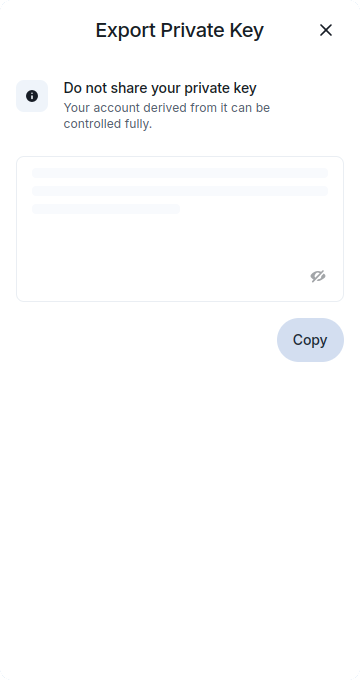
Export a Public Key With Flag for an Account
Exporting a public key allows you to share or verify an account address without exposing sensitive information. Public keys are safe to share and are commonly used for identification, verification, or integration with external tools and services.
A public key with flag is a Base64-encoded representation of the account's public key that includes an additional prefix (flag) identifying the cryptographic scheme used (for example, Ed25519).
This format ensures the public key can be correctly interpreted by the IOTA protocol, SDKs, and tooling, and avoids ambiguity when working with different key types.
-
Go to
Accountsat the top of theHometab. -
Select the account you want to export, click on the
...icon, and chooseExport Account Keysfrom the dropdown. -
Enter your wallet password and click
Verify. -
Click
Copyto copy the public key with flag to your clipboard.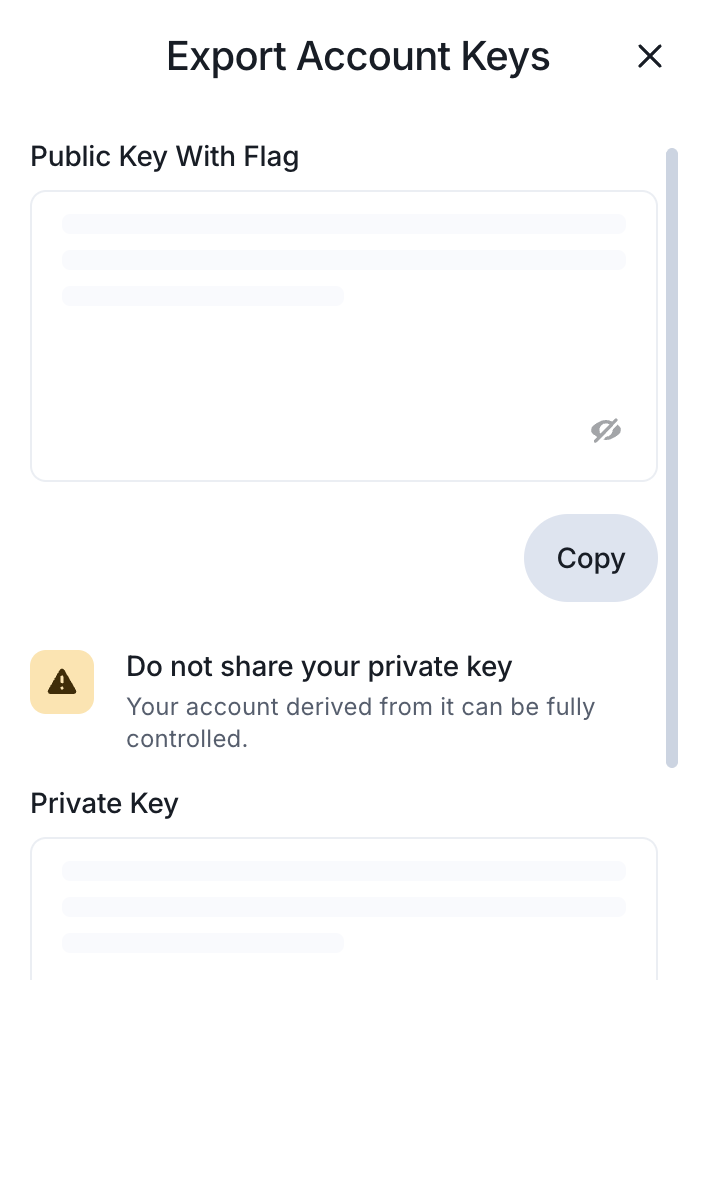
Export a Mnemonic for an Account
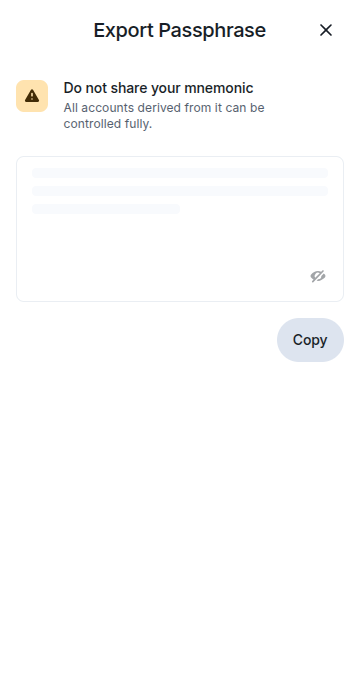
Exporting a mnemonic allows you to use the account with other wallet providers. Handle your mnemonic with extreme caution to prevent unauthorized access to your assets.
When viewing the mnemonic, ensure no one can see your screen. Click the crossed-out eye icon in the bottom-right corner to reveal the key.
-
Go to
Accountsat the top of theHometab. -
Select the account you want to export, click on the
...icon, and chooseExport Mnemonicfrom the dropdown.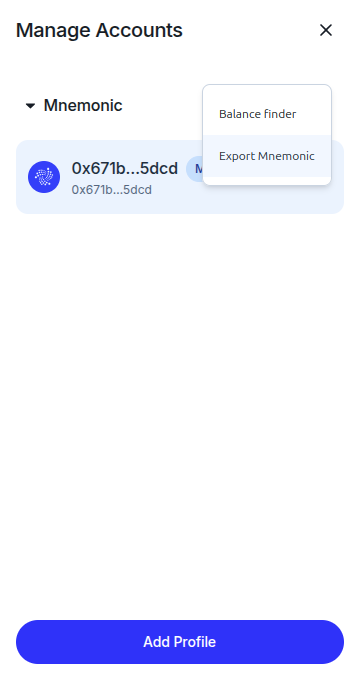
-
Enter your wallet password and click
Verify. -
Click
Copyto copy the mnemonic to your clipboard.